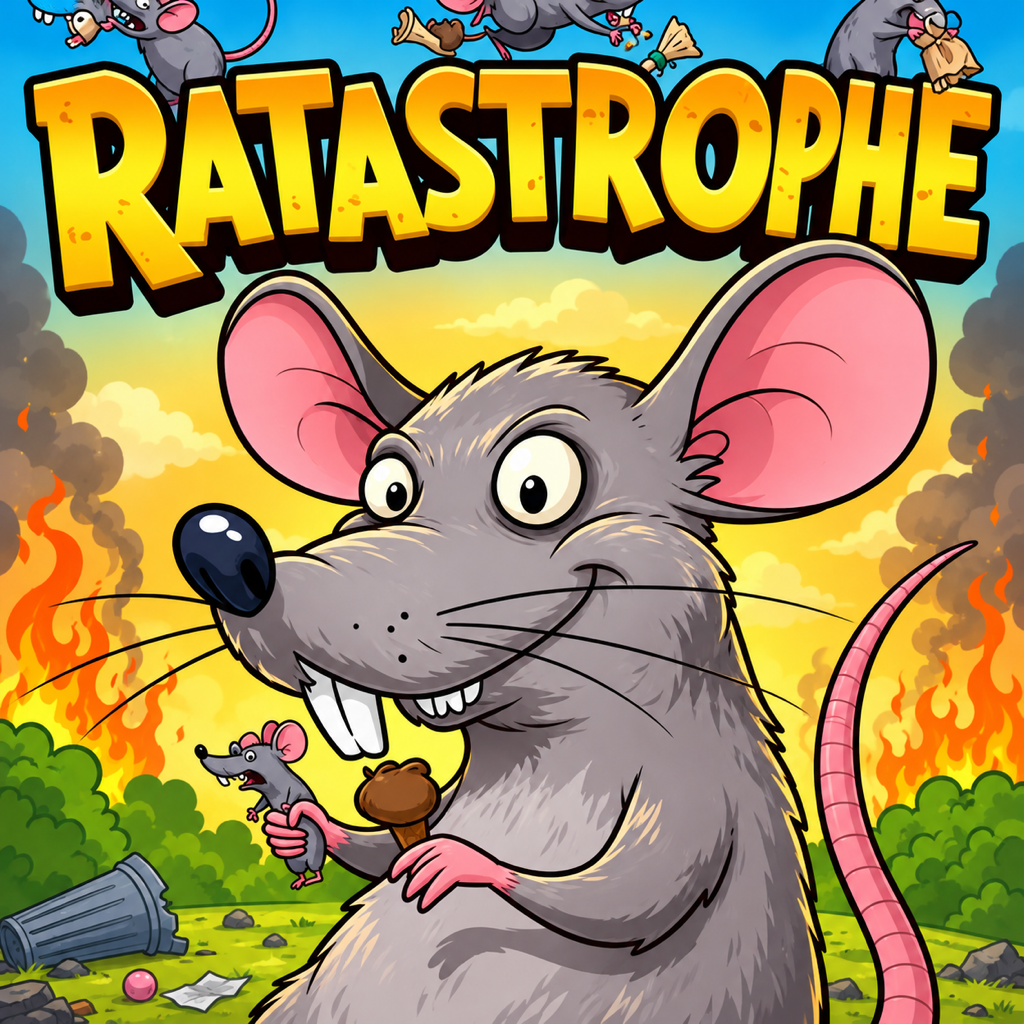
 Ratastrophe
 / Player support
Help for your
growing rat problem.
Questions about the game, a purchase, or something that looks like a bug? Start here, or contact customer service.
Customer service
Contact customer service
For Ratastrophe support, bug reports, feature requests, accessibility questions, or privacy requests:
Email customer servicesupportchesstimewars@gmail.com
This is our shared app-support inbox. Please put “Ratastrophe” in the subject. If the button doesn’t open your email app, copy the address into your preferred email service.
To help investigate, include your device model, iOS/iPadOS version, app version, the turn you reached, what happened, and what you expected. A screenshot can help. Please leave out passwords, payment details, and unrelated personal information.
Starting, saving, and coming back
Why isn’t there a Resume button?
Resume appears when Ratastrophe finds a saved campaign on this device. With no resumable save, New Game fills the top row. Starting a new campaign begins on Turn 1. Once you have a saved game, Resume returns.
How do I save or return to the main menu?
Your campaign saves automatically on this device. Open Actions → Main Menu to return to the cover menu, then choose Resume when you want to continue. Unread turn reports and story decisions are saved with the campaign.
What happens if I choose New Game?
If a saved campaign exists, the game asks before replacing it. Starting again replaces that colony and its story. Your discovered achievements and any verified Remove Ads purchase remain separate from the active campaign.
Does my colony sync to another phone or iPad?
Ratastrophe stores the campaign locally and does not provide developer-hosted cloud synchronization. A different device can have a different game. Inclusion in iCloud or computer device backups depends on your Apple settings. Check those backups before changing devices or deleting the app.
Working with your colonies
How do I get space for more rats or populations?
Open Habitat. Additional enclosures provide rat space and another population slot; larger habitats increase rat space in the enclosures you own. Each environment has a limit. Moving to a larger operation opens more room for expansion.
Why hasn’t selective breeding or a gene edit changed my rats yet?
Those changes are queued for the following turn. A pending indicator appears on the population list, and the editor shows when the result is due. That colony’s breeding and editing controls remain locked until the work completes. Other colonies can still be improved.
Why can’t I see gene editing or advanced training?
Complete the three Gene Research investments in Actions to open gene manipulation in the Population Editor. Projects and training programs appear as you develop the operation and meet their prerequisites. Open a particular population to work with that colony.
Can I send trained rats out again?
Yes. In the Population Editor, select a training program that colony has learned, then use its Send controls. Available jobs depend on the training and the colony. The quoted cash and food costs apply each time.
How do the 10% and Half controls work?
They calculate from the rats remaining in that colony, including after a sale, release, or split. Half twice uses half of what remains each time. The +/− controls switch back to a fixed quantity. Check the selected count and sale quote before confirming.
Why did an action disappear, or why can’t I dismiss a report?
Some actions are one-time unlocks, including establishing a dark web contact. Later opportunities can arrive through story choices. A turn report with an unanswered decision needs a response before Continue becomes available. Scroll through the report to reach the choices.
Remove Ads and purchase help
Ratastrophe is free to download, with banner and occasional full-screen ads. The optional US$0.99 one-time Remove Ads purchase removes both formats. There is no subscription. Apple shows your local price and any applicable taxes before you buy.
Where are Remove Ads and Restore Purchases?
Open Options on the main menu. If you are playing, first choose Actions → Main Menu. Purchase controls are in Options, separate from the gameplay actions.
I already bought Remove Ads. How do I restore it?
Use the same Apple Account that made the purchase, then choose Options → Restore Purchases. An internet connection may be needed to verify the entitlement with Apple. Restoring the purchase does not transfer your saved colony between devices.
When do full-screen ads appear?
Occasional full-screen ads are reserved for breaks after a completed turn report. They do not replace story choices. If an ad cannot load, you can keep playing. Remove Ads disables both these interruptions and the banner placement.
How do I change my ad privacy choices?
Open Options → Ad Privacy Choices when that entry is available for your region. Google’s consent message may also appear when needed. The app requests non-personalized ads; those can still use technical information for delivery and measurement. See the advertising privacy information for details. You do not have to buy Remove Ads to make privacy choices.
The store says the purchase is unavailable or pending.
Check your connection and Apple Account, read the message in Options, and try again later. A pending purchase may need approval or further action through Apple. If the app reports that no purchase was made, the Remove Ads entitlement was not unlocked by that attempt. Contact support if the issue continues; do not send payment card information.
How do I request a refund?
Apple handles App Store payments and refund requests. Visit Apple’s Report a Problem website using the Apple Account that made the purchase. The developer cannot issue an App Store refund directly.
If something isn’t working
Protect your colony first.
Please don’t delete and reinstall the app as a first troubleshooting step. Campaigns are saved on the device, and deleting the app can remove them.
- Check for an available Ratastrophe update.
- If the app responds, return through Actions → Main Menu before closing it. Reopen and choose Resume.
- For a stuck story report, scroll to any unanswered choice and select a response.
- If the problem continues, email support with the steps that caused it, your turn, and a screenshot if useful.
For data storage, deletion, support correspondence, and website hosting, see the privacy policy.
Support information updated November 9, 2026.